Unable to create a Sales Email Prompt Template?

When creating a new Prompt Template, three types of templates are visible by default:

  1. Field Generation
  2. Flex
  3. Record Summary

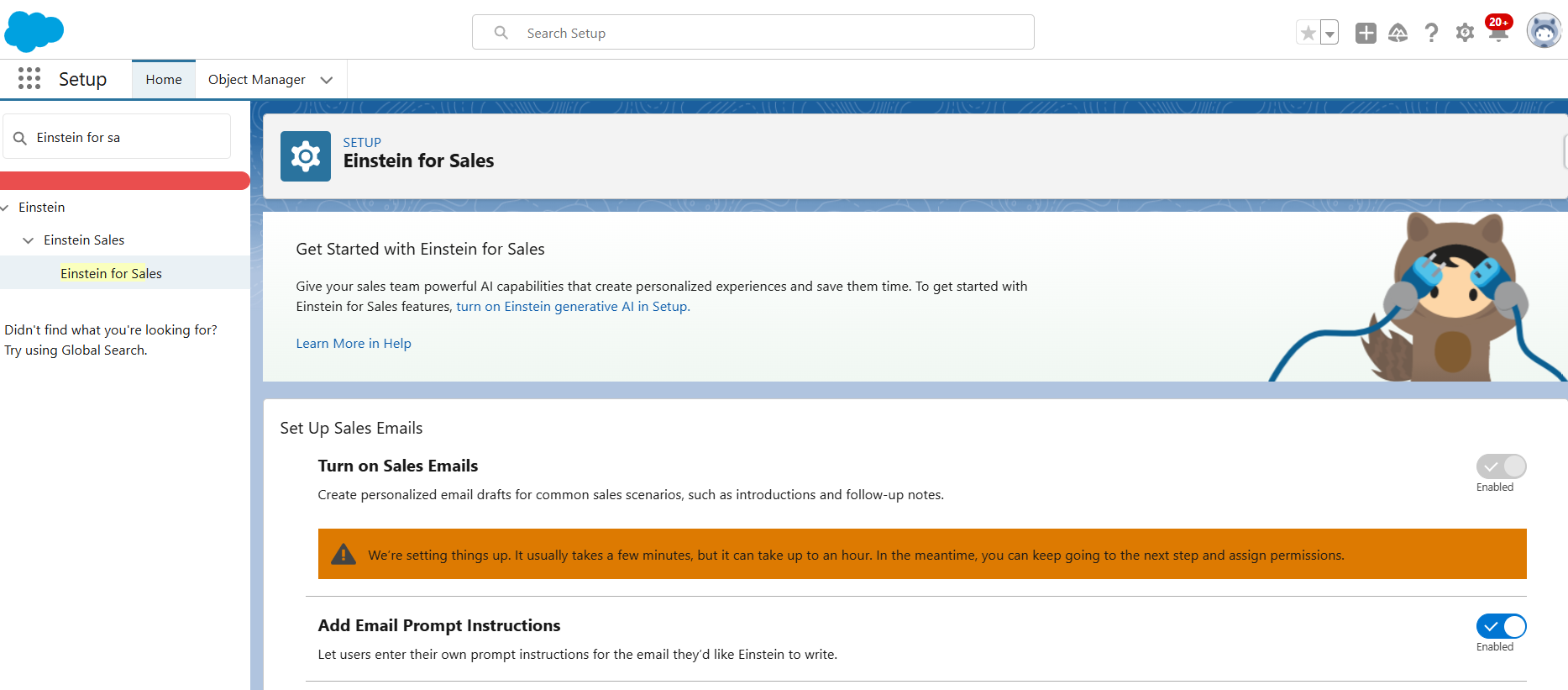
However, to create a Sales Email Prompt Template, follow these steps:

  1. Go to “Einstein for Sales”
  2. Check the toggle, “Turn on Sales Email”

The Prompt Builder now includes an additional option to create a “Sales Email” template. Get this Trailhead Badge to get more insight on Sales Email Prompt Template.

Sample Bitbucket Pipeline Code

Here I am sharing a smaple of Bitbucket Pipeline Code. Please go to this link to check the Bitbucket Pipeline Configuration steps.

Please feel free to connect with me in linkedin, if you have any query related to Bitbucket Pipeline Code / Configuration.

# This file is a sample build configuration for Docker.
# See the guides at https://confluence.atlassian.com/x/O1toN for more examples.
# Only use spaces to indent your .yml configuration.
# --test-level Permissible values are: NoTestRun, RunSpecifiedTests, RunLocalTests, RunAllTestsInOrg
# RunSpecifiedTests: --tests TESTS || - Separate the test names with spaces: --tests Test1 Test2 "Test With Space"
# Reference Link: https://developer.salesforce.com/docs/atlas.en-us.sfdx_cli_reference.meta/sfdx_cli_reference/cli_reference_project_commands_unified.htm
# -----
# You can specify a custom docker image from Docker Hub as your build environment.
image:
  name: salesforce/cli:latest-full
pipelines:
  branches:
    feature/*:
      - step:
          name: Build and Validate
          deployment: Deploy_UAT
          script:
          #Assign variables
          - export TESTLEVEL=NoTestRun
          - export TESTLEVEL1=RunLocalTests
          - export TESTLEVEL2=RunSpecifiedTests
          - export TESTS=$(<SpecifiedTest.txt)
          #Decrypt server key
          - openssl enc -nosalt -aes-256-cbc -d -in assets/server.key.enc -out assets/server.key -base64 -K $DECRYPTION_KEY -iv $DECRYPTION_IV
          #Authorize target org
          - sfdx auth:jwt:grant --instance-url $ENDPOINT --client-id $CONSUMER_KEY --jwt-key-file assets/server.key --username $USER_NAME --alias myOrg
          #Install sfdx-git-delta
          - echo y | sf plugins install sfdx-git-delta
          #Findout Delta
          - git config remote.origin.fetch '+refs/heads/*:refs/remotes/origin/*'
          - git fetch --all
          - git --no-pager diff --name-status $BITBUCKET_BRANCH origin/develop_UAT
          - sfdx sgd:source:delta --to $BITBUCKET_BRANCH --from origin/develop_UAT --output "."
          #Print Test Class Names
          - echo $TESTS
          #Run a check-only deploy
          #Remove --dry-run to actually deploy the changes
          #If SpecifiedTest File contains only "Default" keyword, it executes "NoTestRun"
          #If SpecifiedTest File contains only Test Class Names separated by spaces, it executes "RunSpecifiedTests"
          #If SpecifiedTest File is empty, it executes "RunLocalTests"
          - if [[ $TESTS != "" ]]; then
          - if [[ $TESTS == "Default" ]]; then
          - sf project deploy start --wait 10 -x package/package.xml --target-org myOrg --test-level $TESTLEVEL --dry-run
          - else
          - sf project deploy start --wait 10 -x package/package.xml --target-org myOrg --test-level $TESTLEVEL2 --tests $TESTS "Test With Space" --dry-run
          - fi
          - else
          - sf project deploy start --wait 10 -x package/package.xml --target-org myOrg --test-level $TESTLEVEL1 --dry-run
          - fi
How to configure Bitbucket Pipeline

  1. Create a Self Signed Digital Certificate first
  2. Create a Connected App. Upload the Digital Certificate while creating it. Keep the Consumer Key and Consumer Secret handy.
  3. Encrypt the server key.
    • Go to your Command Prompt again and execute the following command to generate a key and initializtion vector (iv) to encrypt the server.key file locally. The key and iv are used by Bitbucket Pipeplines to decrypt the server key in the build environment. Keep the key and iv handy.
//Generate key and iv

openssl enc -aes-256-cbc -k MY_PASS -P -md sha1 -nosalt
//Encrypt the server key

openssl enc -nosalt -aes-256-cbc -in /Bitbucket/JWT/server.key -out /Bitbucket/JWT/server.key.enc -base64 -K GENERATED_KEY_IN_LAST_STEP -iv GENERATED_IV_IN_LAST_STEP

Inside the Bitbucket

  1. Enable Two Step Verification
  2. Create a Repository, entering a Project Name and Repository Name
  3. Go to Repository settings -> Settings -> Enable Pipelines
  4. Go to Repository variables and set KEY and IV
  5. Go to Deployment and set the Deployment Variables
    • ENDPOINT – Sandbox / Production Instance url
    • CONSUMER_KEY – From Connected App
    • USER_NAME – Username of the Deployment Admin

Create a Project in VS Code

  1. Go to VS Code
  2. Create an empty project
  3. Create a folder called assets as shown in the screenshot
  4. Keep the server.key.enc file inside the assets folder
  5. Keep the bitbucket-pipelines.yml and SpecifiedTest.txt files inside the project folder as shown in the screenshot
  6. Connect the VS Code with the Bitbucket repository
  7. Checkout a feature branch in VS Code
  8. Commit and Push the project

Self Signed Digital Certificate Creation to configure Bitbucket Pipeline

  1. Download and Install OpenSSL
  2. Create a Self Signed Digital Certificate
    • Open the Command Prompt
    • Create a directory mkdir C:\Bitbucket\JWT
    • Go to JWT directory cd C:\Bitbucket\JWT
    • Generate a private key, and store it in a file called server.key
openssl genpkey -des3 -algorithm RSA -pass pass:MY_PASS -out server.pass.key -pkeyopt rsa_keygen_bits:2048
openssl rsa -passin pass:MY_PASS -in server.pass.key -out server.key
  • Now delete the server.pass.key file from the C:\Bitbucket\JWT directory
  • Generate a certificate signing request using the server.key file. Store the certificate signing request in a file called server.csr
openssl req -new -key server.key -out server.csr
  • Enter these details one by one
    • Country Code:
    • State or Province:
    • Locality:
    • Organization Name:
    • Organizational Unit Name:
    • Common Name:
    • Email Address:
    • Challenge Password:
    • Optional Company Name:
  • Generate a self-signed digital certificate from the server.key and server.csr files. Store the certificate in a file called server.crt
openssl x509 -req -sha256 -days 365 -in server.csr -signkey server.key -out server.crt

Creating a Prompt Template

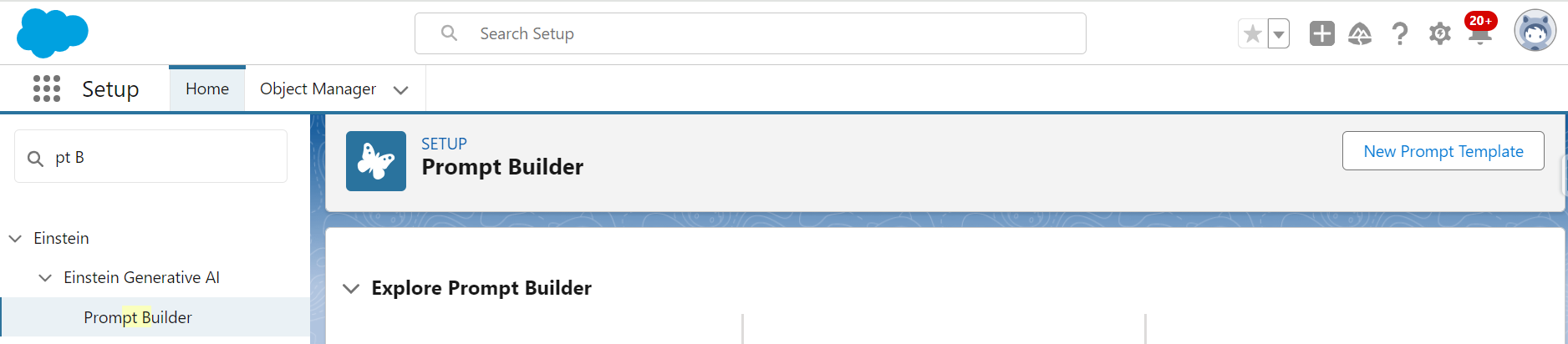
To create a Prompt Template:

  1. Go to Setup.
  2. Type Prompt Builder in the Quick Find box.
  3. Click over Prompt Builder option.
  4. Click New Prompt Template button.
  5. There are three types of Prompt Templates.
    • Field Generation – Complete this Trailhead Badge to get more insight on.
    • Flex – Complete this Trailhead Badge to get more insight on.
    • Record Summary – Complete this Trailhead Badge to get more insight on.
    • Sales Email – The screenshot below does not show this option. Because, to create a sales email prompt template in Prompt Builder, we need the Einstein for Sales, Einstein for Platform, or Einstein for Service add-on. Check this for more details.

Get this Super Badge, if you feel like!

Some useful topics and corresponding links

TopicLink
LWC Quick Actionshttps://developer.salesforce.com/blogs/2021/05/learn-moar-with-summer-21-lwc-quick-actions.html
Apex Performance Tips and Trickshttps://www.youtube.com/watch?v=5Ukoi3pSvQY
Batch Apex – Better exception logging using Platform Eventhttps://meera-r-nair.blogspot.com/2021/06/batch-apex-better-exception-logging.html
Draw ERD in PPThttps://www.youtube.com/watch?v=KfY0xtXKx2k
Salesforce Async execution approachhttps://meera-r-nair.blogspot.com/2022/03/salesforce-asynchronous-execution.html
Building a slack app that integrates with salesforcehttps://developer.salesforce.com/blogs/2022/02/building-a-slack-app-that-integrates-with-salesforce-part-1-architectural-overview?utm_source=sfdevs-india&utm_medium=telegram&utm_campaign=salesforcedevrel
Extracting data from Salesforce with Pythonhttps://medium.com/@harper.brett110/extracting-data-from-salesforce-with-python-b9de98e46721